iOS Skills
随手记,善用搜索,大部分是Objective-C的,少部分Swift的,Swift有另一个笔记
- navigation controller
- vc.NavigationController.title是只读的
- 优先取 vc.navigationItem.title
- 然后取 vc.title
- 大号标题
if (@available(iOS 11.0, *))self.navigationController.navigationBar.prefersLargeTitles = true;* `self.navigationController.navigationItem.largeTitleDisplayMode = UINavigationItemLargeTitleDisplayModeAlways;`
- vc.NavigationController.title是只读的
- searchbar
searchBarStyle = UISearchBarStyleMinimal;移除上下的灰线- 移灰线终极办法:
bar.layer.borderWidth = 1;bar.layer.borderColor = [[UIColor whiteColor] CGColor];
- 剪贴板:
UIPasteboard *pasteboard = [UIPasteboard generalPasteboard];pasteboard.string = self.label.text;
- 模板图片(tint color):
- 对image设template:
imageView.image = [image imageWithRenderingMode:UIImageRenderingModeAlwaysTemplate]; - 对imageView设tintColor:
[imageView setTintColor:color];
- 对image设template:
sizeToFits会根据内容改变size,比如label,在第一次调用的时候会确认宽度,以后不断增加文字只会改变高度了sizeThatFits则是根据本控件与一个size去“得到”一个合适的size
- 分割字符串:
[myHtmlString componentsSeparatedByString: @"\n"]; - graphic绘图:拿到context,移动,线条,颜色,绘制或填充等
- uigraphicbeginimagecontext(size) / getcurrentcontext / move, addline... / set(fill, stroke) / fill_stroke / get_image / end_context
- draw:rect 可以直接get_current
- UIGraphicsImageRenderer(size) -> render / render.image{ctx -> ...} / ctx.cgContext / ...
UIStackView
- The stack view uses Auto Layout to position and size its arranged views.
- 除了
UIStackViewDistributionFillEqually,别的布局都是用intrinsic content size UIStackViewAlignmentFill在轴向填满,但垂直向则保留instrinsic size- the stack view will only
expand one of its subviewsto fill that extra space - Specifically, it expands the view with
the lowest horizontal content hugging priority, (hug, compress分别为抗拉伸和压缩优先级) - or if all of the priorities are equal, it expands the
first view. - 即如果是横向排列,第一个元素会被拉高,其它元素则保持原样(除非人为设了宽高和边距)
- the stack view will only
- Although a stack view allows you to layout its contents without using Auto Layout directly, you still need to use Auto Layout to position the stack view, itself.
- pinning at least two, adjacent edges of the stack view to define its position. Without additional constraints, the system calculates the size of the stack view based on its contents.
- 即至少固定两条邻边(以确定位置),无需其它约束,系统就能根据内容自动计算大小
- 轴向长度为所有元素长度和,垂直向为最大的那个元素的size,
layoutMarginsRelativeArrangement = YES会增加空间- 可以设定自己的大小
distribution是轴向,alignment是垂直向,axis是方向- 除了通过top, left之类的,还能通过第一个或最后一个元素的baselinelayout来约束
UISV-alignment constraints align subviews horizontally by making them have equal .bottom and equal .top layout attributes (NSLayoutAttribute). Notice that the stack view pins all the subviews to the first one. UISV-canvas-connection constraints connect subviews to the ‘canvas’ which is a stack view itself. The first and the last subview gets pinned to the .leading and .trailing layout attributes of the stack view respectively. The first subview also gets pinned to the .top and .bottom attributes.
- 缩放图片:
- lower its content hugging priority below the label’s content hugging priority ?
- to maintain the image view’s aspect ratio as it resizes, set its Mode to Aspect Fit.
- 一致性:
- The stack view ensures that its
arrangedSubviewsproperty is always a subset of its subviews property. (是subivews的子集) - 添加到
arrangedSubviews,也就添加到subviews了 - 从
subviews里移除,也就从arrangedSubviews里移除了 - 反过来,不成立,view还存在,而且也有可能显示在屏幕上
- The stack view ensures that its
- 动态更新,The stack view automatically updates its layout:
- whenever: views are added, removed or inserted into the arrangedSubviews array, (改数组)
- or whenever: one of the arranged subviews’s hidden property changes. (改可见性)
- 或其它任意属性(???),比如
axis - 可以包到
animatedWithDuration::里
- uistackview 自定义padding:
_stackView.layoutMarginsRelativeArrangement = YES;  // 前提
  if (@available(iOS 11.0, *)) {
  _stackView.directionalLayoutMargins = NSDirectionalEdgeInsetsMake(0.0f, LS2_X(15.0f), 0.0f, LS2_X(15.0f));
} else {
  _stackView.layoutMargins = UIEdgeInsetsMake(0.0f, LS2_X(15.0f), 0.0f, LS2_X(15.0f));
}

// 改一边:
stackView.directionalLayoutMargins.leading = 0  // iOS < 10

UIView.animate(withDuration: 0.3) {
    stackView.layoutIfNeeded()
}
- 单独为某个元素设置spacing(specific item spacing)
stackView.setCustomSpacing(20, after: btn)
attributed string
带段落信息的nsattributedstring
NSMutableAttributedString *hogan = [[NSMutableAttributedString alloc] initWithString:@"Presenting the great... Hulk Hogan!"];
[hogan addAttribute:NSFontAttributeName
              value:[UIFont systemFontOfSize:20.0]
              range:NSMakeRange(24, 11)];

UILabel *label = [[UILabel alloc] initWithFrame:CGRectMake(0, 0, 1000, 500)];
label.numberOfLines = 0;//设置段落paragraphStyle,numberOfLines必须为0
label.lineBreakMode = NSLineBreakByWordWrapping;
label.backgroundColor = [UIColor redColor];
NSString *str1 = @"全球开发者大会(WWDC)";
NSString *str2 = @"美国在旧金山芳草地";
NSString *str5 = @"太平洋时间";
NSString *str3 = @"开始:2016-03-10";
NSString *str4 = @"结束:2016-03-20";
NSString *string = [NSString stringWithFormat:@"%@\n%@\n%@\n%@\n%@",str1,str2,str5,str3,str4];
NSMutableAttributedString *attributedString = [[NSMutableAttributedString alloc] initWithString:string];

NSMutableParagraphStyle *paragraphStyle = [[NSMutableParagraphStyle alloc] init];
paragraphStyle.lineSpacing = 20.0;

NSDictionary *attrsDictionary1 = @{NSFontAttributeName:[UIFont systemFontOfSize:30],                                      NSParagraphStyleAttributeName:paragraphStyle};
NSDictionary *attrsDictionary2 = @{NSParagraphStyleAttributeName:paragraphStyle};    //给str1添加属性,字体加粗,并且设置段落间隙
[attributedString addAttributes:attrsDictionary1 range:NSMakeRange(0, str1.length)];    //给str2设置段落间隙
[attributedString addAttributes:attrsDictionary2 range:NSMakeRange(str1.length, str2.length)];    //attributedString如果还有别的样式需要添加可以这样依次加属性
label.attributedText = attributedString;
[self.view addSubview:label];
判断AttributedString是否设置了某属性
if ([text attribute:YYTextBindingAttributeName atIndex:range.location effectiveRange:NULL]) return;
修改AttributedString的文字
NSAttributedString *newString = [[NSAttributedString alloc] initWithString:text];
[self setAttributedText:newString];
attributed string with image
NSTextAttachment *icon = [[NSTextAttachment alloc] init];
[icon setBounds:CGRectMake(0, -LS_Y(2), image.size.width, image.size.height)];
[icon setImage:image];
NSAttributedString *iconString = [NSAttributedString attributedStringWithAttachment:icon];
[attrStr insertAttributedString:iconString atIndex:0];
[attrStr insertAttributedString:[[NSAttributedString alloc] initWithString:@"  "] atIndex:0];
NSMutableAttributedString *str = [[NSMutableAttributedString alloc] initWithString:title];
NSMutableParagraphStyle *paragraph = [NSMutableParagraphStyle new];
paragraph.minimumLineHeight = LS2_Y(30.0f);
[str addAttributes:@{
  NSFontAttributeName: font_Regular_LC(12.0f),
  NSForegroundColorAttributeName: textColor,
  NSBackgroundColorAttributeName: background,
  NSParagraphStyleAttributeName: paragraph
} range:NSRangeFromString(title)];
hittest
B盖住A,但事件传递链是多底向顶的(application -> window -> ...),找响应者才是从顶到底
所以可以有机会在A的hittest方法里把事件拦截住。
#pragma mark - hitTest
- (UIView *)hitTest:(CGPoint)point withEvent:(UIEvent *)event
{
    // 当touch point是在_btn上,则hitTest返回_btn
    CGPoint btnPointInA = [_btn convertPoint:point fromView:self];
    if ([_btn pointInside:btnPointInA withEvent:event]) {
        return _btn;
    }

    // 否则,返回默认处理
    return [super hitTest:point withEvent:event];
}
autolayout
NSLayoutConstraint.activate([
    v2.leadingAnchor.constraint(equalTo:v1.leadingAnchor),
    v2.trailingAnchor.constraint(equalTo:v1.trailingAnchor),
    v2.topAnchor.constraint(equalTo:v1.topAnchor),
    v2.heightAnchor.constraint(equalToConstant:10),
    v3.widthAnchor.constraint(equalToConstant:20),
    v3.heightAnchor.constraint(equalToConstant:20),
    v3.trailingAnchor.constraint(equalTo:v1.trailingAnchor),
    v3.bottomAnchor.constraint(equalTo:v1.bottomAnchor)
])

let constraint1 = view.heightAnchor.constraint(lessThanOrEqualToConstant: 400.0)
        constraint1.isActive = true
最简单的加红点/圆点:
NSMutableAttributedString * attrStr = [[NSMutableAttributedString alloc]initWithString:@"• 已取消"];
[attrStr addAttributes:@{NSForegroundColorAttributeName:UIColor.redColor} range:NSMakeRange(0, 1)];
_statusLabel.attributedText = attrStr;

NSMutableAttributedString *str = [[NSMutableAttributedString alloc] initWithString:@"• 已取消"];
[str addAttributes:@{NSForegroundColorAttributeName: color,
                         NSFontAttributeName: font
                       } range:NSMakeRange(0, 1)];
任意圆角 & shape layer + path as mask
CALayer *cornerLayer = [CALayer layer];
cornerLayer.frame = _addBtnView.bounds;
cornerLayer.backgroundColor = [UIColor whiteColor].CGColor;

// 任意圆角
CGPathRef path = [UIBezierPath bezierPathWithRoundedRect:_addBtnView.bounds
                                       byRoundingCorners:(UIRectCornerTopLeft | UIRectCornerBottomLeft) cornerRadii:CGSizeMake(LS_Y(46), LS_Y(46))].CGPath;
CAShapeLayer *lay = [CAShapeLayer layer];
lay.path = path;
cornerLayer.mask = lay;

[_addBtnView.layer addSublayer:cornerLayer];
动画 & autolayout
// 约束变更后,把layoutifneeded放到animated方法里
    selected = !selected
    widthConstraint.constant = selected ? 100 : 200
    UIView.animateWithDuration(0.3){
        self.view.layoutIfNeeded()
    }

cell.layoutMargins = UIEdgeInsetsZero;
- 改变frame.size会使 superVIew的layoutSubviews调用
- 改变bounds.origin和bounds.size都会调用superView和自己view的layoutSubviews方法
状态条大小
[[UIApplication sharedApplication] statusBarFrame]
KVC
- (void)fillCell:(UITableViewCell *)cell data:(LSCellData *)rowObj {
    for (NSString * keyPath in rowObj.data.allKeys) {
        if (keyPath.length == 0) { continue; }
        [cell setValue:rowObj.data[keyPath] forKeyPath:keyPath];
    }
}
AlertController
自定义action的颜色,用kvc
action.setValue(appGreenColor, forKey: "titleTextColor")
collection operatior (using KVC)
多层数组例子:[ data / item],比如共有2个data,每个data有3个item,每个item有3个子元素 计算共有多少个子元素,就是把最里层的item给count一下再sum起来
[obj.data valueForKeyPath: @"item.@sum.@count"]
// 或以下,等效
[obj valueForKeyPath: @"data.item.@sum.@count"]
解读:
- 先count每个item, 再sum出来,得到每一个data的itemCount
- 再sum itemCount
- 可以理解为
@count是最底层的逻辑,其它的任意层级父级都只是在做@sum
filter array
- regular loops,
- C-style (
for(int i=0;i<count;i++)) - or with fast enumeration (
for(id obj in array)),
- C-style (
- NSEnumerators,
- filtering with NSPredicates, (with -
filteredArrayUsingPredicate:) - filtering with blocks. (with -
enumerateObjectsUsingBlock:) - kvc
@interface NSArray (KeyValueFiltering)
- (id) firstObjectWithValue:(id)value forKeyPath:(NSString*)keypath;
- (NSArray*) filteredArrayWithValue:(id)value forKeyPath:(NSString*)keypath;
@end

Person * steve = [employees firstObjectWithValue:[NSNull null] forKeyPath:@"car.licenseplates"]
Person * ceo = [employees firstObjectWithValue:@"[email protected]" forKeyPath:@"email"];
// 过滤items属性的个数为0的 -> kvc
NSArray * emptyBoxes = [boxes filteredArrayWithValue:@0 forKey:@"items.@count"];

// 感觉 = 和 == 都能用来判断
let ageIs33Predicate = NSPredicate(format: "%K = %@", "age", "33")
NSPredicate *namesBeginningWithLetterPredicate = [NSPredicate predicateWithFormat:@"(firstName BEGINSWITH[cd] $letter) OR (lastName BEGINSWITH[cd] $letter)"];

// ["Alice Smith", "Quentin Alberts"]
NSLog(@"'A' Names: %@", [people filteredArrayUsingPredicate:[namesBeginningWithLetterPredicate predicateWithSubstitutionVariables:@{@"letter": @"A"}]]);

NSPredicate *shortNamePredicate = [NSPredicate predicateWithBlock:^BOOL(id evaluatedObject, NSDictionary *bindings) {
    return [[evaluatedObject firstName] length] <= 5;
}];

// "in" 过滤
// 写成数组成行["to_start", "execution"...]
// 反查由用 NOT (itemName in [....]),即整体包起来包个not, 而没有not in的语法
NSPredicate *predict = [NSPredicate predicateWithFormat:@"projectStatus IN {'TO_START', 'EXECUTION', 'PAUSE', 'COMPLETE', 'REWORK'} "];
NSArray *array = [self.data.dispatchProjects filteredArrayUsingPredicate:predict];
同一个.h文件定义多个类
* 报重复的符号错(不要在.h文件里面@implementaion)
* 报找不到符号错(要在.m文件里面@implementation)
collectionview
// rect内包含的元素的indexPath:
- (NSArray *)aapl_indexPathsForElementsInRect:(CGRect)rect {
    NSArray *allLayoutAttributes = [self.collectionViewLayout layoutAttributesForElementsInRect:rect];
    if (allLayoutAttributes.count == 0) { return nil; }
    NSMutableArray *indexPaths = [NSMutableArray arrayWithCapacity:allLayoutAttributes.count];
    for (UICollectionViewLayoutAttributes *layoutAttributes in allLayoutAttributes) {
        NSIndexPath *indexPath = layoutAttributes.indexPath;
        [indexPaths addObject:indexPath];
    }
    return indexPaths;
}

// 当前可见区域:(contentOffset + boundSize)
CGRect visitRect = {self.collectionView.contentOffset,self.collectionView.bounds.size};
选中了某项后退回本页,清除前选中项的selected状态:
override func viewWillAppear(_ animated: Bool) {
  super.viewWillAppear(animated)
  // 如果有选中的
  if let indexPath = self.collectionView.indexPathsForSelectedItems?.first {
    if let coordinator = self.transitionCoordinator {
      coordinator.animate(alongsideTransition: { context in
                                                self.collectionView.deselectItem(at: indexPath, animated: true)
                                               }) { (context) in
                                                   if context.isCancelled {  // 这是什么意思
                                                     self.collectionView.selectItem(at: indexPath, animated: false, scrollPosition: [])
                                                   }
                                                  }
    } else {
      self.collectionView.deselectItem(at: indexPath, animated: animated)
    }
  }
}
日期,日历,比较
NSCalendar *calendar = [[NSCalendar alloc] initWithCalendarIdentifier:NSCalendarIdentifierGregorian];
NSDateComponents *components = [calendar components:NSCalendarUnitYear|NSCalendarUnitMonth|NSCalendarUnitDay
                                           fromDate:date
                                             toDate:date2
                                            options:0];
NSLog(@"Difference in date components: %li/%li/%li", (long)components.day, (long)components.month, (long)components.year);

([date1 compare:self.minLimitDate] == NSOrderedAscending) {
date1 = self.minLimitDate;

// 跳天
NSDateComponents *dayComponent = [[NSDateComponents alloc] init];
dayComponent.day = 1;

NSCalendar *theCalendar = [NSCalendar currentCalendar];
NSDate *nextDate = [theCalendar dateByAddingComponents:dayComponent toDate:[NSDate date] options:0];

NSLog(@"nextDate: %@ ...", nextDate);
block
typedef void(^SuccessBlock)(NSArray<MaintenanceGanttModel *> *);
string, json, data
NSData *jsonData = [jsonString dataUsingEncoding:NSUTF8StringEncoding];
NSError *err;
NSDictionary *dic = [NSJSONSerialization JSONObjectWithData:jsonData
                                                    options:NSJSONReadingMutableContainers
                                                      error:&err];
NSArray
存取C语言类型
// uiedgeinsets存取
NSArray *contentInsets = @[NSStringFromUIEdgeInsets(UIEdgeInsetsMake(10, 20, 30, 40)), NSStringFromUIEdgeInsets(UIEdgeInsetsMake(10, 10, 10, 10)), ...];

UIEdgeInsetsFromString(str); // 取

// cgpoints存取
NSArray *points = [NSArray arrayWithObjects:
                     [NSValue valueWithCGPoint:CGPointMake(5.5, 6.6)],
                     [NSValue valueWithCGPoint:CGPointMake(7.7, 8.8)],
                     nil];

NSValue *val = [points objectAtIndex:0];
CGPoint p = [val CGPointValue];
Tableview
顶部空白
//  iOS15 tableview headerView会自动变高
#if __IPHONE_15_0
    if (@available(iOS 15.0, *)) {
        [UITableView appearance].sectionHeaderTopPadding = 0;
    }
#endif

_tableView.contentInset = UIEdgeInsetsMake(-LS2_Y(25.0f), 0.0f, 0.0f, 0.0f);
_tableView.sectionHeaderHeight = 0.001f;
_tableView.sectionFooterHeight = 0.001f;
if (@available(iOS 11.0, *)) {
    _tableView.contentInsetAdjustmentBehavior = UIScrollViewContentInsetAdjustmentNever;
} else {
}
_tableView.backgroundColor = UIColor.redColor;  // debug
自适应大小(intrinsic content size)
If you want to contract/expand cells based on their intrinsic content size, you need to do the following 3 steps:
-
Configure the table view:
tableView.rowHeight = UITableViewAutomaticDimension
tableView.estimatedRowHeight = 44
For static table view controller, you will need to implement
heightForRowAtIndexPathand returnUITableViewAutomaticDimension. -
Update cell constraints to reflect contracted/expanded state
-
Ask the table view to reflect changes:
tableView.beginUpdates()
tableView.endUpdates()
自适应高度的表格例子:
class SelfSizedTableView: UITableView {
  var maxHeight: CGFloat = UIScreen.main.bounds.size.height

  override func reloadData() {
    super.reloadData()
    self.invalidateIntrinsicContentSize()
    self.layoutIfNeeded()
  }

  override var intrinsicContentSize: CGSize {
    let height = min(contentSize.height, maxHeight)
    return CGSize(width: contentSize.width, height: height) // 这里很奇怪,如果没有min的参与,就是说tableview本身就是自适应高度的吧
  }
}
恢复滚动位置
多用于IQKeybaordManage在发现键盘拉起后把scroll里面的东西也向上滚动避免键盘挡住输入框
tableView.shouldRestoreScrollViewContentOffset = YES;
tableView.shouldIgnoreScrollingAdjustment = YES;
系统版本
#define IS_IOS6_AND_UP ([[UIDevice currentDevice].systemVersion floatValue] >= 6.0)
交互返回手势
self.navigationController.interactivePopGestureRecognizer.enabled
布局 layout scrollview 自适应高度(垂直为例)
- scroll贴边
- 元素用autolayout依次排列(top=last_bottom)
- 元素左右贴scrollview的边
- 元素给出固定高度
即时绘制 graphic image
绘图,draw, block
let sz = CGSize(width: 20, height: 20)
let im = UIGraphicsImageRenderer(size:sz).image { ctx in
    ctx.cgContext.fillEllipse(in:CGRect(origin:.zero, size:sz))
}
// more detail
let renderer = UIGraphicsImageRenderer(size: CGSize(width: 20, height: 20))
let actions:(UIGraphicsImageRendererContext) -> Void = { (ctx) in
    let size = ctx.format.bounds.size
    UIColor.blue.setFill()
    ctx.fill(CGRect(x: 1, y: 1, width: size.width - 1, height: size.height - 1))
}
/*
	let image = renderer.image { (ctx) in
    let size = ctx.format.bounds.size  <<-- size
    UIColor.blue.setFill()
    ctx.fill(CGRect(x: 1, y: 1, width: 140, height: 140))
    UIColor.yellow.setFill()
    ctx.fill(CGRect(x: 60, y: 60, width: 140, height: 140), blendMode: .luminosity) <<-- blendmode
	  ctx.cgContext.rotate(by: 100)  << rotate
}
*/
let imageJPEGData = renderer.jpegData(withCompressionQuality: 1, actions: actions)
let imagePNGData = renderer.pngData(actions: actions)
模拟器资源不够
Unable to boot device due to insufficient system resources.
sudo launchctl limit maxproc 2000 2500
sudo launchctl limit maxfiles 65536 200000
页面截图
view.snapshotView(afterScreenUpdates: true)
// 或自行截图
public extension UIView {
    public func snapshotImage() -> UIImage? {
        UIGraphicsBeginImageContextWithOptions(bounds.size, isOpaque, 0)
        drawHierarchy(in: bounds, afterScreenUpdates: false)
      // 还有一种更久远的写法
      // [gridView.tableView.layer renderInContext:UIGraphicsGetCurrentContext()];
      // drawHierarchy api更新,但是实际中有视网膜屏问题
      // 即想截个图跟原图完全一样大,得用老的layer.renderInContext方法
        let snapshotImage = UIGraphicsGetImageFromCurrentImageContext()
        UIGraphicsEndImageContext()
        return snapshotImage
    }

    public func snapshotView() -> UIView? {
        if let snapshotImage = snapshotImage() {
            return UIImageView(image: snapshotImage)
        } else {
            return nil
        }
    }
}
    UIGraphicsImageRenderer *render = [[UIGraphicsImageRenderer alloc] initWithSize:self.QRView.bounds.size];
    @weakify(self)
    UIImage *image = [render imageWithActions:^(UIGraphicsImageRendererContext * _Nonnull rendererContext) {
        @strongify(self)
        [self.QRView drawViewHierarchyInRect:self.QRView.bounds afterScreenUpdates:NO];
    }];
- 权限:
[PHPhotoLibrary authorizationStatus]
保存图片到相册
UIImageWriteToSavedPhotosAlbum(image, self, @selector(image:didFinishSavingWithError:contextInfo:), nil);

[Doc](https://developer.apple.com/documentation/uikit/1619125-uiimagewritetosavedphotosalbum?language=objc)
/// 保存到相册结果回调
- (void)image:(UIImage *)image didFinishSavingWithError:(NSError *)error contextInfo:(void *)contextInfo {
    BOOL isSuccess = error == nil;
    if(isSuccess) {
        //
    } else {
        //
    }
}
Animation
如果要动画改变button的图标,是没有办法的,但可以通过透明度来切换两个不同图标的按钮:
UIView.animateWithDuration(0.5) {
  self.plusSignButton.layer.transform = CATransform3DMakeRotation(CGFloat(M_PI_2), 0, 0, 1)
  self.plusSignButton.alpha = 0
  self.minusSignButton.alpha = 1
}
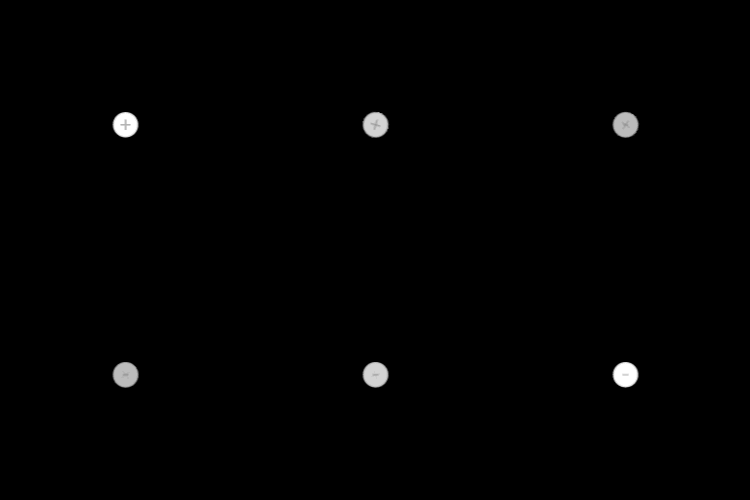
自带的移除view的方法
perform(_:on:options:animations:completion:)
with .delete as its first argument (this is, in fact, the only possible first argument).
移除动画:
[button.layer removeAllAnimations];
basic:
CABasicAnimation *rotation = [CABasicAnimation animationWithKeyPath:@"transform.rotation"];
rotation.fromValue   = [NSNumber numberWithFloat:0.0f];
rotation.toValue     = [NSNumber numberWithFloat:M_PI*2];
rotation.duration    = 1.0f;
rotation.repeatCount = HUGE_VAL;
[self.refreshIcon.layer addAnimation:rotation forKey:nil];
空白图片
let empty = UIGraphicsImageRenderer(size:mars.size).image { _ in }
String
// split
NSString *test=@"bozo__foo!!bar.baz";
NSString *sep = @"_!.";
NSCharacterSet *set = [NSCharacterSet characterSetWithCharactersInString:sep];
NSArray *temp=[test componentsSeparatedByCharactersInSet:set];
NSLog(@"temp=%@",temp);
document property / method
为方法和属性添加文档和注释
	/*!
    @brief It converts temperature degrees from Celsius to Fahrenheit scale.
    @param  fromCelcius The celsius degrees value.
    @return float The degrees in the Fahrenheit scale.
    @code
        float f = [self toCelsius:80];
    @endcode
    @remark This is a super-easy method.
 */
Xcode
Xcode snippets sync dropbox
新版dropbox更改了路径:/Users/walker/Library/CloudStorage/Dropbox
# source computer
ln -s ~/Library/Developer/Xcode/UserData/CodeSnippets ~/Dropbox/CodeSnippets
# other computer
rm -R ~/Library/Developer/Xcode/UserData/CodeSnippets.
mv ~/Dropbox/CodeSnippets ~/Library/Developer/Xcode/UserData/CodeSnippets.
ln -s ~/Library/Developer/Xcode/UserData/CodeSnippets ~/Dropbox/CodeSnippets.

# 如果要同步更多的设置,目录改为:
ln ~/Library/Developer/Xcode/UserData
核心就ln -s这一句,其它就是多试试停止同步,恢复同步(移动文件前都停止sync),关闭xcode等让它生效的时间
Xcode console debug show Stacktrace
控制台打印调试信息
helporbt(backtrace, stacktrace)- po
Xcode 模拟器build失败
正常跑模拟器没问题,cmd+I的话就编译失败:
ld: in /Users/walker/Documents/_work/LotusAfterSalesiPad/Pods/Bugly/Bugly.framework/Bugly(libBugly.a-arm64-master.o), building for iOS Simulator, but linking in object file built for iOS, file '/Users/walker/Documents/_work/LotusAfterSalesiPad/Pods/Bugly/Bugly.framework/Bugly'
解决,对模拟器排除arm64: build settings > Architechtures > Excluded Architectures > Release > Any iOS Simulator SDK > arm64
pod项目则在pods的target里设置,或者podfile:
post_install do |installer|
    installer.pods_project.targets.each do |target|
        target.build_configurations.each do |config|
            config.build_settings["EXCLUDED_ARCHS[sdk=iphonesimulator*]"] = "arm64"
        end
    end
end
报错:
Sandbox: rsync.samba(66985) deny(1) file-write-create
If you are using Xcode 15 or the latest code version try to set "No" for the "User Scripting sandbox" option on build Settings.
Xcode快捷键
- 定位当前文件: ⇧ + ⌘ + J
- 定位当前方法: ⌃ + 6
- ⇧ + ⌘ + O 的结果列表里按住option再回国就是新开一个窗口
Xcode 隐藏autolayout警告
UserDefaults.standard.set(false, forKey: "_UIConstraintBasedLayoutLogUnsatisfiable")
[[NSUserDefaults standardUserDefaults] setValue:@(NO) forKey:@"_UIConstraintBasedLayoutLogUnsatisfiable"];
或者:Product -> Scheme -> Edit Scheme... -> Run -> Arguments -> Arguments Passed On Launch: -_UIConstraintBasedLayoutLogUnsatisfiable NO
Xcode提示todo等标签为警告
- // TODO:标识将来要完成的内容;
- // FIXME:标识以后要修正或完善的内容。
- // ???: 疑问的地方
- // !!!: 需要注意的地方
- // MARK: 等同于
#pragma mark
添加自定义的标识,并在编译时,在warning中显示出来;
- 进入项目属性设置那个页面
- 选择一个Target
- 选择Build Phases标签
- 点击左上角的Add Build Phase(+号)
- 展看上面刚出现那一栏Run Script,输入以下内容
把下面的代码粘贴到shell框中
KEYWORDS="TODO:|FIXME:|\?\?\?:|\!\!\!:"
find "${SRCROOT}" \( -name "*.h" -or -name "*.m" \) -print0 | xargs -0 egrep --with-filename --line-number --only-matching "($KEYWORDS).*\$" | perl -p -e "s/($KEYWORDS)/ warning: \$1/"
Xcode配置应用图标
要配置应用图标, 需要到Assets里面把AppIcon相关的所有图片插槽全部填满, 但是从Xcode14.2起, 可以只提供一个1024x1024的图片, 然后Xcode会自动生成所有尺寸的图标.
键盘事件
#pragma mark - keyboard events

- (void)registerKeyboradNotification {
    //注册键盘出现的通知
    [[NSNotificationCenter defaultCenter] addObserver:self selector:@selector(keyboardWillShow:) name:UIKeyboardWillShowNotification object:nil];
    //注册键盘消失的通知
    [[NSNotificationCenter defaultCenter] addObserver:self selector:@selector(keyboardWillHide:) name:UIKeyboardWillHideNotification object:nil];
}

///键盘显示事件
- (void)keyboardWillShow:(NSNotification *)notification {
    // 取得键盘的动画时间,这样可以在视图上移的时候更连贯
    double duration = [[notification.userInfo objectForKey:UIKeyboardAnimationDurationUserInfoKey] doubleValue];
    [UIView animateWithDuration:duration animations:^{
        self.scrollView.contentOffset = CGPointMake(0.0, LS2_Y(185.0f));
    }];
}

///键盘消失事件
- (void)keyboardWillHide:(NSNotification *)notification {
    // 键盘动画时间
    double duration = [[notification.userInfo objectForKey:UIKeyboardAnimationDurationUserInfoKey] doubleValue];
    //视图下沉恢复原状
    [UIView animateWithDuration:duration animations:^{
        self.scrollView.contentOffset = CGPointZero;
    }];
}

- (void)dealloc{
    [[NSNotificationCenter defaultCenter] removeObserver:self];
}
键盘高度
NSDictionary *userInfo = [notification userInfo];
NSValue *value = [userInfo objectForKey:UIKeyboardFrameEndUserInfoKey];
CGRect kbRect = [value CGRectValue];
CGFloat height = kbRect.size.height;
部分圆角
_dropMenuButton.layer.maskedCorners = kCALayerMinXMinYCorner|kCALayerMinXMaxYCorner;
数组排序sort nsarray
 [arr sortedArrayUsingDescriptors:@[
            [NSSortDescriptor sortDescriptorWithKey:@"code" ascending:YES]
        ]];
逆序遍历数组
Reverse enumerate nsarray
[array enumerateObjectsWithOptions:NSEnumerationReverse usingBlock:…]
-[NSArray reverseObjectEnumerator]
  for (id someObject in [myArray reverseObjectEnumerator])
{
    // print some info
    NSLog([someObject description]);
}
应用.gitignore变化
Make changes in .gitignore file.
Run git rm -r --cached . command.
Run git add . command
git commit -m "Commit message"
IQKeyboardManager
你的textfield被多个scrollview所嵌套,比如scroll -> table -> textfield,那么展开键盘的时候就会每个scroll都上移,可用IQUIScrollView+Additions.h里的shouldIgnoreScrollingAdjustment属性去ignore
标记过时方法
You can also use more readable define DEPRECATED_ATTRIBUTE
It defined in usr/include/AvailabilityMacros.h:
#define DEPRECATED_ATTRIBUTE        __attribute__((deprecated))
#define DEPRECATED_MSG_ATTRIBUTE(msg) __attribute((deprecated((msg))))
scroll to view
一个思路
extension UIScrollView {

    // Scroll to a specific view so that it's top is at the top our scrollview
    func scrollToView(view:UIView, animated: Bool) {
        if let origin = view.superview {
            // Get the Y position of your child view
            let childStartPoint = origin.convertPoint(view.frame.origin, toView: self)
            // Scroll to a rectangle starting at the Y of your subview, with a height of the scrollview
            self.scrollRectToVisible(CGRect(x:0, y:childStartPoint.y,width: 1,height: self.frame.height), animated: animated)
        }
    }

    // Bonus: Scroll to top
    func scrollToTop(animated: Bool) {
        let topOffset = CGPoint(x: 0, y: -contentInset.top)
        setContentOffset(topOffset, animated: animated)
    }

    // Bonus: Scroll to bottom
    func scrollToBottom() {
        let bottomOffset = CGPoint(x: 0, y: contentSize.height - bounds.size.height + contentInset.bottom)
        if(bottomOffset.y > 0) {
            setContentOffset(bottomOffset, animated: true)
        }
    }
}
#PopOver (Private) view
DemoMenuViewController *vc = [DemoMenuViewController new];
vc.modalPresentationStyle = UIModalPresentationPopover;
UIPopoverPresentationController *source = vc.popoverPresentationController;
source.sourceView = btn;
source.sourceRect = btn.bounds;
source.permittedArrowDirections = UIPopoverArrowDirectionAny; // 箭头方向
source.delegate = self;
[self presentViewController:vc animated:YES completion:nil];

// delegate
- (UIModalPresentationStyle)adaptivePresentationStyleForPresentationController:(UIPresentationController *)controller{
    return UIModalPresentationNone;
}

- (BOOL)popoverPresentationControllerShouldDismissPopover:(UIPopoverPresentationController *)popoverPresentationController{
    return YES;   //点击蒙版popover不消失, 默认yes
}

// popover vc
- (CGSize)preferredContentSize {
    if(!self.presentingViewController) return [super preferredContentSize];
    return CGSizeMake(150.0f, 200.0f);
}
CollectionView
Tagged Pointers
The Objective-C runtime, when running in 64-bit mode, represents object pointers using 64-bit integers. Normally, this integer value points to an address in memory where the object is stored. But as an optimization, some small values can be stored directly in the pointer itself. If the least-significant bit is set to 1, a pointer is considered to be tagged; the runtime reads the next 3 bits to determine the tagged class and then initializes a value of that class using the next 60 bits.
就是值非常小的话,把值直接存到了指针里。读到特殊的标识,则往后读3个bits,初始化为定义的类,再往后读60个bits,作为初始化的值
半屏viewcontroller, sheets viewcontroller
import UIKit

class PresentationController: UIPresentationController {

  let blurEffectView: UIVisualEffectView!
  var tapGestureRecognizer: UITapGestureRecognizer = UITapGestureRecognizer()

  override init(presentedViewController: UIViewController, presenting presentingViewController: UIViewController?) {
      let blurEffect = UIBlurEffect(style: .dark)
      blurEffectView = UIVisualEffectView(effect: blurEffect)
      super.init(presentedViewController: presentedViewController, presenting: presentingViewController)
      tapGestureRecognizer = UITapGestureRecognizer(target: self, action: #selector(dismissController))
      blurEffectView.autoresizingMask = [.flexibleWidth, .flexibleHeight]
      self.blurEffectView.isUserInteractionEnabled = true
      self.blurEffectView.addGestureRecognizer(tapGestureRecognizer)
  }

  override var frameOfPresentedViewInContainerView: CGRect {
      CGRect(origin: CGPoint(x: 0, y: self.containerView!.frame.height * 0.4),
             size: CGSize(width: self.containerView!.frame.width, height: self.containerView!.frame.height *
              0.6))
  }

  override func presentationTransitionWillBegin() {
      self.blurEffectView.alpha = 0
      self.containerView?.addSubview(blurEffectView)
      self.presentedViewController.transitionCoordinator?.animate(alongsideTransition: { (UIViewControllerTransitionCoordinatorContext) in
          self.blurEffectView.alpha = 0.7
      }, completion: { (UIViewControllerTransitionCoordinatorContext) in })
  }

  override func dismissalTransitionWillBegin() {
      self.presentedViewController.transitionCoordinator?.animate(alongsideTransition: { (UIViewControllerTransitionCoordinatorContext) in
          self.blurEffectView.alpha = 0
      }, completion: { (UIViewControllerTransitionCoordinatorContext) in
          self.blurEffectView.removeFromSuperview()
      })
  }

  override func containerViewWillLayoutSubviews() {
      super.containerViewWillLayoutSubviews()
    presentedView!.roundCorners([.topLeft, .topRight], radius: 22)
  }

  override func containerViewDidLayoutSubviews() {
      super.containerViewDidLayoutSubviews()
      presentedView?.frame = frameOfPresentedViewInContainerView
      blurEffectView.frame = containerView!.bounds
  }

  @objc func dismissController(){
      self.presentedViewController.dismiss(animated: true, completion: nil)
  }
}

extension UIView {
  func roundCorners(_ corners: UIRectCorner, radius: CGFloat) {
      let path = UIBezierPath(roundedRect: bounds, byRoundingCorners: corners,
                              cornerRadii: CGSize(width: radius, height: radius))
      let mask = CAShapeLayer()
      mask.path = path.cgPath
      layer.mask = mask
  }
}

// 使用
let yourVC = YourViewController()
yourVC.modalPresentationStyle = .custom
yourVC.transitioningDelegate = self
self.present(yourVC, animated: true, completion: nil)

////////
iOS 15
let yourVC = YourViewController()

if let sheet = yourVC.sheetPresentationController {
    sheet.detents = [.medium()]
}
self.present(yourVC, animated: true, completion: nil)
UITextFiled place position
padding, inset等
myTextField.layer.sublayerTransform = CATransform3DMakeTranslation(5, 0, 0);
随机数,随机颜色
UIColor(
            red: .random(in: 0...1),
            green: .random(in: 0...1),
            blue: .random(in: 0...1)
        )
其实就是CGFloat.random的用法,比OC下的arc4random_uniform少除一个255(因为那个只支持整数)
UICollectionView 瀑布流思路
核心:提前计算好每一个元素的位置,并cache好,后续都是从cache里取布局属性
- prepare方法里准备一个cache,把每个元素的位置算好(WTF?),即在整张画布里的绝对位置(所以是用的offset)
- 比如是两行的瀑布流,那么x只有两个值,然后每一列每个元素自己的y-offset值存起来
- 封装成UICollectionViewLayoutAttributes对象,存的是其frame属性
- 其它效果就设transform等属性
- 然后有两个平行方法
layoutAttributesForElements(in rect: CGRect)表示为可见区域的元素提供布局策略(即你封装好的attributes里的frame- `layoutAttributesForItem(at indexPath: IndexPath)则是为特定indexPath的元素提示布局信息,来源都是prepare里面算好的
override func layoutAttributesForElements(in rect: CGRect)
    -> [UICollectionViewLayoutAttributes]? {
  var visibleLayoutAttributes: [UICollectionViewLayoutAttributes] = []

  // Loop through the cache and look for items in the rect
  for attributes in cache {
    if attributes.frame.intersects(rect) {
      visibleLayoutAttributes.append(attributes)
    }
  }
  return visibleLayoutAttributes
}
override func layoutAttributesForItem(at indexPath: IndexPath)
    -> UICollectionViewLayoutAttributes? {
  return cache[indexPath.item]
}
CollectionView 插入动画
设置一个初始位置,添加和删除就会自动反向执行
// 默认一个初始位置
- (UICollectionViewLayoutAttributes *)initialLayoutAttributesForAppearingItemAtIndexPath:(NSIndexPath *)itemIndexPath {
   UICollectionViewLayoutAttributes* attributes = [self layoutAttributesForItemAtIndexPath:itemIndexPath];
   attributes.alpha = 0.0;

   CGSize size = [self collectionView].frame.size;
   attributes.center = CGPointMake(size.width / 2.0, size.height / 2.0);
   return attributes;
}
// 但这会造成所有元素都从这个位置动画到最终位置,所以最好多加点判断
// 即只对updateItems进行动画,别的就使用super的initialLayout
- (void)prepareForCollectionViewUpdates:(NSArray *)updateItems
{
    [super prepareForCollectionViewUpdates:updateItems];
    NSMutableArray *indexPaths = [NSMutableArray array];
    for (UICollectionViewUpdateItem *updateItem in updateItems) {
        switch (updateItem.updateAction) {
            case UICollectionUpdateActionInsert:
                [indexPaths addObject:updateItem.indexPathAfterUpdate];
                break;
            case UICollectionUpdateActionDelete:
                [indexPaths addObject:updateItem.indexPathBeforeUpdate];
                break;
            case UICollectionUpdateActionMove:
                //                [indexPaths addObject:updateItem.indexPathBeforeUpdate];
                //                [indexPaths addObject:updateItem.indexPathAfterUpdate];
                break;
            default:
                NSLog(@"unhandled case: %@", updateItem);
                break;
        }
    }
    self.shouldanimationArr = indexPaths;
}
CollectionView 注册双击事件
双击中的第一击会被单击事件捕获
UITapGestureRecognizer* tapGesture = [[UITapGestureRecognizer alloc] initWithTarget:self action:@selector(handleTapGesture:)];
tapGesture.delaysTouchesBegan = YES;  //  等于调用cancelsTouchesInView
tapGesture.numberOfTapsRequired = 2;
[self.collectionView addGestureRecognizer:tapGesture];
CATextLayer
设置字体:
textLayer.font = (__bridge CFTypeRef)@"AmericanTypewriter-CondensedLight";
textLayer.fontSize = 18;

// 或直接转换
textLayer.font = (__bridge CFTypeRef)[UIFont preferredFontForTextStyle:UIFontTextStyleLargeTitle]

textLayer.alignmentMode = kCAAlignmentCenter;
CALayer, mask
- mask是CALayer的一个属性,它本身也是一个CALayer类,但是mask比较特殊。
- 当一个CALayer当做mask遮罩层时,那么这个CALayer的color属性就没有效果了,影响显示效果的是透明度。
- 也就是把mask本身的透明度应用到被遮罩的图层上,比如本身是透明,那么被遮罩的图层就是透明的
- 所以不要理解为“盖,和遮罩“,不如理解为一个“配置器”,只不过这个配置器不是文本,而是用layer的形式。
Swift init
swift类有属性的时候需要有init方法进行初始化,或者给默认值,不然报如下错误
Class 'xxxxViewController' has no initializers
你加一个init方法,在里面初始化就好了。
当你的类是一个viewController,你想super.init(),还会得到如下错误
Must call designated initializer of the superclass UIViewController
这时可以用如下两种解决:
convenience init() {
    self.init()
    // ...
}

// OR

init() {
     super.init(nibName: nil, bundle: nil)
}
UICollectionViewCompositionalLayout layout items after break line, the item can't kept the width dimension but use the dimension of the same positon at the first row
but in UICollectionFlowlayout, the item can keep it's own dimension
is there a way to customize the size but use the compositional layout?
UITextField, UITextView, UISearchBar, keyboard
- focus文本框,拉出pickerView
- 其实就是设置为其inputView:
textField.inputView = pickerView
- 其实就是设置为其inputView:
- 隐藏键盘的undo,paste等图标按钮
- 其实就是设置其assistantItem:
textField.inputAssistantItem.leadingBarButtonGroups = []textField.inputAssistantItem.trailingBarButtonGroups = []
- 键盘上方显示工具条
- 其实就是其inputAccessoryView:
textField.inputAccessoryView = toolBar- 工具条的是
UIBarButtonItem数组 - 占位元素的类型是
.flexibleSpace,或.fixedSpace
file path, bundle path
let img = UIImage(contentsOfFile: Bundle.main.path(forResource: "boat", ofType: "png")!)
loadView v.s. viewDidLoad
- loadView里如果需要覆盖rootView,即
self.view = xxx, 不需要调用super方法 - 如果只是添加view和约束,则需要super一下
- 视图结构类的代码放到
loadView里,controller和交互有关的才需要放到viewDidLoad里
检查git应用密码的方式
git config --get-all --show-origin credential.helper
能查到哪个文件用了什么credential方式,比如xxxx/.gitconfig oxkeychain,如果密码错了之类的,就找到对应的文件,删掉这种方式,下次就会询问你了
Masonry
- 能equalTo一组元素
make.height.equalTo(@[view1.mas_height, view2.mas_height]);
make.height.equalTo(@[view1, view2]);
make.left.equalTo(@[view1, @100, view3.right]);
- 给元素,约束一个key,能在debug的时候根据名字找到出错的约束
// you can attach debug keys to views like so:
greenView.mas_key = @"greenView";
redView.mas_key = @"redView";
blueView.mas_key = @"blueView";
superview.mas_key = @"superview";

// OR you can attach keys automagically like so:
// 这样应该是用变量名作key了
MASAttachKeys(greenView, redView, blueView, superview);

// 相同的Key会自动加上索引
make.edges.equalTo(@1).key(@"ConflictingConstraint");
make.height.greaterThanOrEqualTo(@5000).key(@"ConstantConstraint");

// 数字也能作为key
make.height.equalTo(@[greenView, blueView]);
- UIEdgeInset也可以赋值给单边(会自动根据方向取值)
UIEdgeInsets kPadding = {10, 10, 10, 10}

// 这有个好处,不需要在right和bottom里面取负数
make.left.equalTo(self.left).insets(kPadding);  // 取padding.left
make.top.equalTo(self.top).insets(kPadding);    // 取padding.top
- view数组也可以应用mas_make/upadte/remaek系列方法 我以前是在一个循环里去调的
- baseline
[self.shortLabel makeConstraints:^(MASConstraintMaker *make) {
    make.top.equalTo(self.longLabel.lastBaseline);
    make.right.equalTo(self.right).insets(kPadding);
}];
// 1. 与longLabel的底部对齐
// 2. 是mas_lastBaseline的简写(其实就是在属性的getter方法里调mas_方法)
// 3. 与文字排版的基准线对齐,firstBaseline就是第一行文字的基准线

make.left.equalTo(@0);  // 等效 make.left.equalTo(superview).offset(0);
- layoutMargin其实就是padding(内边距),与内边距对齐用margin:
UIView *lastView = self;
for (int i = 0; i < 10; i++) {
    UIView *view = UIView.new;
    view.backgroundColor = [self randomColor];
    view.layoutMargins = UIEdgeInsetsMake(5, 10, 15, 20); // 设置内边距
    [self addSubview:view];

    // 与内边距对齐
    // 如果与top/left/right/bottom对齐,这些view就全部一样大了
    [view mas_makeConstraints:^(MASConstraintMaker *make) {
        make.top.equalTo(lastView.topMargin);
        make.bottom.equalTo(lastView.bottomMargin);
        make.left.equalTo(lastView.leftMargin);
        make.right.equalTo(lastView.rightMargin);
    }];

    lastView = view;
}
- distribution
// 有水平和垂直分布两种轴向
// 有fixedSpacing和fixedItemLength两种 size方式
[arr mas_distributeViewsAlongAxis:MASAxisTypeHorizontal withFixedSpacing:20 leadSpacing:5 tailSpacing:5];
// 比如这里水平,平均分配,那么left, right ,width都不要管了,
// 每个元素自己的top, bottom(或height)自己维护就行
[arr makeConstraints:^(MASConstraintMaker *make) {
    make.top.equalTo(@60);
    make.height.equalTo(@60);
}];
- 一些offset用法
// make width = superview.width + 100, height = superview.height - 50
make.size.equalTo(superview).sizeOffset(CGSizeMake(100, -50))

// make centerX = superview.centerX - 5, centerY = superview.centerY + 10
make.center.equalTo(superview).centerOffset(CGPointMake(-5, 10))

// 还会自动根据轴向应用size里的宽和高
// 下面这个例子的.width.height等同于.size, 但是因为要去equall layoutguide,所以分开写了
make.width.height.equalTo(self.view.mas_safeAreaLayoutGuide).sizeOffset(CGSizeMake(- 40.0, - 40.0));

// 这里只设了width, 但也用了sizeOffset,跟前面的padding一样,会自动取相应的值吧
make.width.equalTo(self.view.mas_safeAreaLayoutGuide).sizeOffset(CGSizeMake(- 60.0, - 60.0));

// 多来几个,注意四边的推断,和单边的推断
make.right.equalTo(self.view.mas_safeAreaLayoutGuideRight);  // 这个如果写成areaLayoutGuide,也会推断出left来
make.left.top.equalTo(self.view.mas_safeAreaLayoutGuide); // 这个会自己取left, top出来
- 倍数约束
// 宽度是指定元素高度的3倍
make.width.equalTo(self.topInnerView.mas_height).multipliedBy(3);
UILayoutGuide
UILayoutGuide 是什么? 一个可以和 Auto Layout 交互的矩形框,它比用view来占位有更好的内存开销,且不添加到视图层级,不拦截事件
// 创建 UILayoutGuide
let layoutGuide = UILayoutGuide()
// 添加到 view 里
view.addLayoutGuide(layoutGuide)  // 把它理解为addSubView(emptyView)
// 让 UILayoutGuide 参与到自动布局的工作中
let top = layoutGuide.topAnchor.constraint(equalTo: labelOne.topAnchor)
let bottom = layoutGuide.bottomAnchor.constraint(equalTo: labelTwo.bottomAnchor)
NSLayoutConstraint.activate([top, bottom])
ScrollView contentinset
在iOS11之前,系统会通过动态调整UIScrollView的contentInset属性来实现视图内容的偏移,但是在iOS11中,系统不再调整UIScrollView的contentInset,而是通过contentInsetAdjustmentBehavior和adjustedContentInset来配合完成。
遇到NavigationController被隐藏的页面时,如果内部视图为scrollview或其子类tableView等,iOS11下将默认采用UIScrollViewContentInsetAdjustmentAutomatic属性,自然视图会被下移到UIStatusBar下(如果你的布局为scrollview.top = superview.top),这时我们只需要将scrollView.contentInsetAdjustmentBehavior = UIScrollViewContentInsetAdjustmentNever;即可。
estimatedRowHeight, self-sizing tableview
假定一个5行的tableview,cell内容高度270
- 在禁用
estimatedRowHeight情况下(即设为0),同时也没有`tableView:estimatedHeightForRowAtIndexPath:方法:tableView:heightForRowAtIndexPath:代理方法先执行了5次,- 然后才执行了
tableView:cellForRowAtIndexPath:代理方法, - 此时tableView contentSize为{414, 1350}。
- 当我们滚动tableView的时候,tableView contentSize没有变化。
- 加上
tableView:estimatedHeightForRowAtIndexPath:代理方法- 预估高度小于实际高度(200 < 270)
- 注,此处等同于
estimatedRowHeight = 200.0f,但进不了代理方法,不能加拦截 tableView:estimatedHeightForRowAtIndexPath:代理方法先执行了5次,- 然后才执行了
tableView:cellForRowAtIndexPath:和tableView:heightForRowAtIndexPath:代理方法。 - 此时从下往上滚动tableView,tableView contentSize的高度以70的差值的增加(就是实际值替换预估值的过程)。
- 注,此处等同于
- 预估高度大于实际高度(300 > 207)
- 顺序一致,只是content Size以30的差值减小
- 预估高度小于实际高度(200 < 270)
结论:
- 先算大小,再加载数据
- 有估计值的就先估计大小,再加载数据,再应用计算大小(根据滚动到可见区域情况)
- 如果实际高度计算复杂,就会消耗更多性能
- 但是预估高度与实际高度相差比较大,在滑动过快时就会产生“跳跃”现象
# 求行数
-[ViewController tableView:numberOfRowsInSection:]
# 求预估高度
-[ViewController tableView:estimatedHeightForRowAtIndexPath:]
-[ViewController tableView:estimatedHeightForRowAtIndexPath:]
-[ViewController tableView:estimatedHeightForRowAtIndexPath:]
-[ViewController tableView:estimatedHeightForRowAtIndexPath:]
-[ViewController tableView:estimatedHeightForRowAtIndexPath:]
# 得到预估大小
 此时TableView contentSize == {414, 1000}
# 每请求一个cell,则请求一次实际高度
# 同时更新content Size
-[ViewController tableView:cellForRowAtIndexPath:]
-[ViewController tableView:heightForRowAtIndexPath:]
 此时TableView contentSize == {414, 1070}
 # 如此往复
-[ViewController tableView:cellForRowAtIndexPath:]
-[ViewController tableView:heightForRowAtIndexPath:]
 此时TableView contentSize == {414, 1140}
-[ViewController tableView:cellForRowAtIndexPath:]
-[ViewController tableView:heightForRowAtIndexPath:]
 此时TableView contentSize == {414, 1210}
最后,如果预估高度等于实际高度,该走的代理方法一个也没少,但是KVO监听的属性变化则不会触发,因为new和old value是相等的。也就是说我们并不需要在监听方法里判断new与old是否相等。
action sheet 和 selector数组
- (IBAction)rightNavigationItemAction:(id)sender {
    [[[UIActionSheet alloc]
      initWithTitle:@"Actions"
      delegate:self
      cancelButtonTitle:@"Cancel"
      destructiveButtonTitle:nil
      otherButtonTitles:
      @"Insert a row",
      @"Insert a section",
      @"Delete a section", nil]
     showInView:self.view];
}

- (void)actionSheet:(UIActionSheet *)actionSheet clickedButtonAtIndex:(NSInteger)buttonIndex {
    SEL selectors[] = {
        @selector(insertRow),
        @selector(insertSection),
        @selector(deleteSection)
    };

    if (buttonIndex < sizeof(selectors) / sizeof(SEL)) {
        void(*imp)(id, SEL) = (typeof(imp))[self methodForSelector:selectors[buttonIndex]];
        imp(self, selectors[buttonIndex]);
    }
}
获取合适的容器大小
[self.tableView systemLayoutSizeFittingSize:UILayoutFittingCompressedSize];
封装sturct为NSValue
typedef struct {
    float x, y, z;
} ThreeFloats;

@interface MyClass
@property (nonatomic) ThreeFloats threeFloats;
@end

ThreeFloats floats = {1., 2., 3.};
NSValue* value = [NSValue valueWithBytes:&floats objCType:@encode(ThreeFloats)];
[myClass setValue:value forKey:@"threeFloats"];

NSValue* result = [myClass valueForKey:@"threeFloats"];
Hex Color
#ifndef UIColorHex
#define UIColorHex(_hex_)   [UIColor colorWithHexString:((__bridge NSString *)CFSTR(#_hex_))]
#endif
Language & TimeFormatter
时间,日期,语言, locale相关
Unix 时间戳(英文为 Unix epoch, Unix time, POSIX time 或 Unix timestamp),是指从 1970 年 1 月 1 日(UTC/GMT 的午夜)开始,所经过的秒数(不考虑闰秒)。按照 ISO 8601 规范,Unix 时间戳的 0 为:1970-01-01T00:00:00Z.,其中 1 小时用 Unix 时间戳表示为 3600 秒,1 天用 Unix 时间戳表示为 86400 秒(不计算闰秒)。
语言
NSLocale *locale = [NSLocale currentLocale];
NSString *language = [locale displayNameForKey:NSLocaleIdentifier value:[locale localeIdentifier]];

// output:
// Français (France)
// English (United States)

[NSLocale canonicalLanguageIdentifierFromString:[[NSLocale preferredLanguages] firstObject]] // en-CN
[NSLocale preferredLanguages][0] // en-CN
[NSLocale currentLocale].languageCode // en

// Example code - try changing the language codes and see what happens
NSLocale *locale = [[NSLocale alloc] initWithLocaleIdentifier:@"en"];
NSString *l1 = [locale displayNameForKey:NSLocaleIdentifier value:@"en"];
NSString *l2 = [locale displayNameForKey:NSLocaleIdentifier value:@"de"];
NSString *l3 = [locale displayNameForKey:NSLocaleIdentifier value:@"sv"];
NSLog(@"%@, %@, %@", l1, l2, l3);
// English, German, Swedish

NSString *language = [[NSLocale preferredLanguages] objectAtIndex:0];
NSDictionary *languageDic = [NSLocale componentsFromLocaleIdentifier:language]; //en-CN
[languageDic objectForKey:@"kCFLocaleCountryCodeKey"] // country code(CN)
[languageDic objectForKey:@"kCFLocaleLanguageCodeKey"] // language code(en)
时区
[NSTimeZone localTimeZone]
// Local Time Zone (Asia/Shanghai (GMT+8) offset 28800)

[NSTimeZone defaultTimeZone]
// Asia/Shanghai (GMT+8) offset 28800

[NSTimeZone systemTimeZone]
// Asia/Shanghai (GMT+8) offset 28800

[[NSTimeZone localTimeZone] secondsFromGMT] / 3600 // 8

// 下面这个扩展我有个疑问,为什么要自己加时间
// 除非是存时间的人没有把时区存进去,转出来才要自己加时间(因为存就存错了)
// 不然存取的人都默认为是0时区的,就不会有问题
@implementation NSDate(Utils)

-(NSDate *) toLocalTime
{
  NSTimeZone *tz = [NSTimeZone defaultTimeZone];
  NSInteger seconds = [tz secondsFromGMTForDate: self];
  return [NSDate dateWithTimeInterval: seconds sinceDate: self];
}

-(NSDate *) toGlobalTime
{
  NSTimeZone *tz = [NSTimeZone defaultTimeZone];
  NSInteger seconds = -[tz secondsFromGMTForDate: self];
  return [NSDate dateWithTimeInterval: seconds sinceDate: self];
}

@end
转换
// date to string
NSDate *date = [NSDate dateWithTimeIntervalSince1970:timeInterval]; // 以秒计,而不是毫秒
NSDateFormatter *dateformatter=[[NSDateFormatter alloc]init];
[dateformatter setDateFormat:@"dd-MM-yyyy"]; // 加上zzz会带时区信息
NSString *dateString=[dateformatter stringFromDate:date];

// date from string
NSDateFormatter *formatter = [[[NSDateFormatter alloc] init] autorelease];
[formatter setDateFormat:@"EEE, dd MMM yyyy HH:mm:ss zzz"];
// 如果字符串里没有时区信息
[formatter setTimeZone:[NSTimeZone timeZoneWithName:@"GMT"]];
return [formatter dateFromString:dateString];
正则
NSPredicate *pred = [NSPredicate predicateWithFormat:@"SELF MATCHES %@", regex];
BOOL isMatch = [pred evaluateWithObject:self];

// 搜索所有中文
(@"[^"]*[\u4E00-\u9FA5]+[^"\n]*?")
// 这个正则则匹配所有双字节 [^\x00-\xff]
playground live view
在playgournd里使用UIKit, 现在新建一个single view的playground就可以了
import UIKit
import PlaygroundSupport

//===========================================
// MARK: StackViewController
//===========================================
class StackViewController : UIViewController {
    override func loadView() {
        let view = UIView()
        view.backgroundColor = .darkGray
        self.view = view

        let stackView = UIStackView(arrangedSubviews: [])
        view.addSubview(stackView)

        stackView.distribution = .equalSpacing
        stackView.alignment = .center
        stackView.axis = .vertical
        stackView.spacing = 32

        stackView.translatesAutoresizingMaskIntoConstraints = false
        NSLayoutConstraint.activate([
            stackView.topAnchor.constraint(equalTo: view.topAnchor, constant: 32),
            stackView.leadingAnchor.constraint(equalTo: view.leadingAnchor),
            stackView.trailingAnchor.constraint(equalTo: view.trailingAnchor)
            ])
    }
}

PlaygroundPage.current.liveView = StackViewController()
UIFont
UIFont.preferredFont(forTextStyle: .headline)
[UIFont fontWithDescriptor:[UIFontDescriptor fontDescriptorWithName:@"HarmonyOS_Sans_SC" size:16]  size:16] // 自定义字体
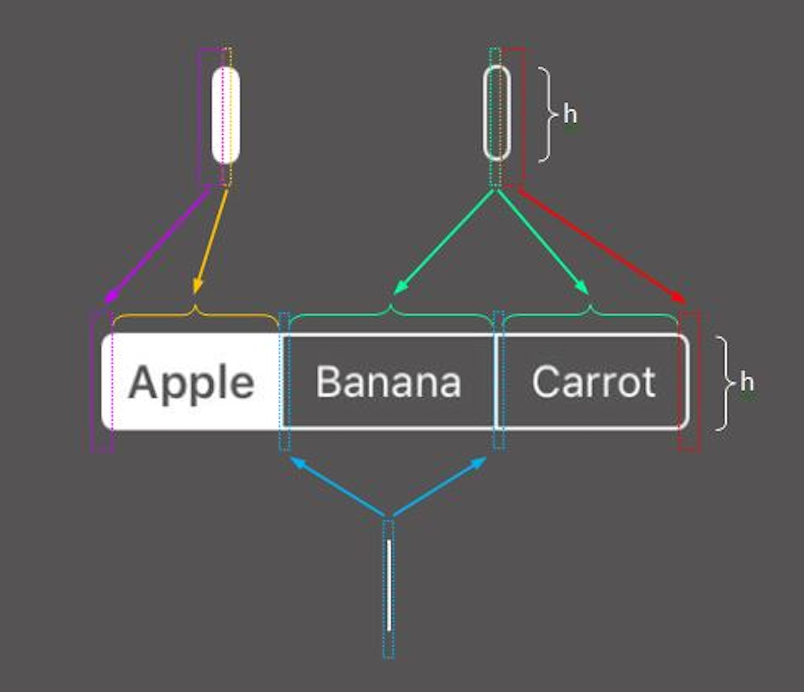
UISegmentedControl
Files, file path
Documents(NSDocumentDirectory)Library(NSLibraryDirectory)- child: Application Support
、Preferences、Caches
- child: Application Support
tmp(NSTemporaryDirectory())
- (void)viewDidLoad {
    [super viewDidLoad];

    // 1.捆绑包目录
    NSLog(@"bundlePath %@",[NSBundle mainBundle].bundlePath);

    // 2.沙盒主目录
    NSString *homeDir = NSHomeDirectory();
    NSLog(@"homeDir %@",homeDir);

    // 3.Documents目录
    NSLog(@"Documents url %@",[[NSFileManager defaultManager] URLsForDirectory:NSDocumentDirectory inDomains:NSUserDomainMask].firstObject);
    NSLog(@"Documents pathA %@",NSSearchPathForDirectoriesInDomains(NSDocumentDirectory, NSUserDomainMask, YES).firstObject);
    NSLog(@"Documents pathB %@",[homeDir stringByAppendingPathComponent:@"Documents"]);

    // 4.Library目录
    NSLog(@"Library url %@",[[NSFileManager defaultManager] URLsForDirectory:NSLibraryDirectory inDomains:NSUserDomainMask].firstObject);
    NSLog(@"Library pathA %@",NSSearchPathForDirectoriesInDomains(NSLibraryDirectory, NSUserDomainMask, YES).firstObject);
    NSLog(@"Library pathB %@",[homeDir stringByAppendingPathComponent:@"Library"]);

    // 5.Caches目录
    NSLog(@"Caches url %@",[[NSFileManager defaultManager] URLsForDirectory:NSCachesDirectory inDomains:NSUserDomainMask].firstObject);
    NSLog(@"Caches path %@",NSSearchPathForDirectoriesInDomains(NSCachesDirectory, NSUserDomainMask, YES).firstObject);

    // 6.temp目录
    NSLog(@"tmpA %@",NSTemporaryDirectory());
    NSLog(@"tmpB %@",[homeDir stringByAppendingPathComponent:@"tmp"]);
- 将用户数据放入
Documents/ - 将应用创建的支持文件放在
Library/Application support/目录中 - 把临时数据放在
tmp/目录 - 把数据缓存文件放在
Library/Caches/目录 - iCloud默认会对
Documents/和Application Support/目录内容进行备份,可以通过[NSURL setResourceValue: forKey: error: ]方法排除不需要备份的文件,此时key应为NSURLIsExcludedFromBackupKey。任何可以被再次创建或下载的文件都必须从备份中排出,这对于大型媒体文件尤为重要。如果你的app需要下载音频或视频,一定要把下载的音视频从备份中排除。
路径:
- 基于路径的URL:
file:///Users/ad/Library/Developer/CoreSimulator/Devices/B839573B-A8AD-490A-9B62-0A75813758BA/data/Containers/Data/Application/82635C86-0E64-46CA-8E97-D434651551C2/Documents/github.com/pro648/ - File Reference URL:
file:///.file/id=16777220.17054390/ - 基于字符串的路径:
/Users/ad/Library/Developer/CoreSimulator/Devices/B839573B-A8AD-490A-9B62-0A75813758BA/data/Containers/Data/Application/82635C86-0E64-46CA-8E97-D434651551C2/Documents/github.com/pro648
互转
- (void)viewDidLoad {
    ...
    // 创建文件管理器
    NSFileManager *sharedFM = [NSFileManager defaultManager];

    // 创建NSURL类型documentsURL路径 转换为NSString类型和fileReferenceURL类型路径
    NSURL *documentsURL = [sharedFM URLsForDirectory:NSDocumentDirectory inDomains:NSUserDomainMask].firstObject;
    NSLog(@"documentsURL:%@",documentsURL);
    NSLog(@"documentsURL convert to path:%@",documentsURL.path);
    NSLog(@"fileReferenceURL:%@",[documentsURL fileReferenceURL]);

    // 创建NSString类型libraryPath路径 转换为NSURL类型路径
    NSString *libraryPath = NSSearchPathForDirectoriesInDomains(NSLibraryDirectory, NSUserDomainMask, YES).firstObject;
    NSLog(@"libraryPath:%@",libraryPath);
    NSLog(@"libraryPath convert to url:%@",[NSURL fileURLWithPath:libraryPath]);
}
FileManager也有获取特定路径的功能:
let documents = FileManager.default.urls(for: .documentDirectory, in: .userDomainMask).first!
let support = FileManager.default.urls(for: .applicationSupportDirectory, in: .userDomainMask).first!

// 检查文件(夹)是否存在,创建文件,列出文件
FileManager.default.fileExists(atPath: filePath, isDirectory: false)
FileManager.default.createFile(atPath: filePath, contents: data) // 传入nil创建空文件
let files = try! FileManager.default.contentsOfDirectory(atPath: docPath)
NS_OPTIONS
使用|来增加选项,使用~来减少选项
options = a|b|c;
options = options & (~c); // 还剩下b, c
String
// 过滤所有非英文和数字的字符
NSCharacterSet *cs = [[NSCharacterSet characterSetWithCharactersInString:ALPHANUM] invertedSet];
NSString *filtered = [[string componentsSeparatedByCharactersInSet:cs] componentsJoinedByString:@""];
Git
提交记录可视化
[alias]
	ls = log --no-merges --color --graph --date=format:'%Y-%m-%d %H:%M:%S' --pretty=format:'%Cred%h%Creset -%C(yellow)%d%Cblue %s %Cgreen(%cd) %C(bold blue)<%an>%Creset' --abbrev-commit
定义结构体struct
结构体名不能直接用来当作类型,typedef一下
struct LAPIDataPosition {
    NSInteger section;  ///< 组
    NSInteger row;      ///< 行
    NSInteger index;    ///< 列
};
typedef struct LAPIDataPosition LAPIDataPosition;

// 顺便写个make方法
CG_INLINE LAPIDataPosition
LAPIDataPositionMake(NSInteger section, NSInteger row, NSInteger index) {
    LAPIDataPosition position;
    position.section = section;
    position.row = row;
    position.index = index;
    return position;
}
禁用方法
- (instancetype)init NS_UNAVAILABLE;
fastlane, jekins
#!/bin/bash -il
export FASTLANE_XCODEBUILD_SETTINGS_TIMEOUT=120
pod --version

echo $PATH
rm -r $timestamp@tmp
cd $timestamp
fastlane  test  workspace:$WORKSPACE timestamp:$timestamp channel:$channel updateDescription:$updateDescription ipaType:$ipaType jenkins_build_number:$BUILD_NUMBER environment:$environment branch:$BRANCH cookie:"$cookie"
屏幕旋转
iOS 获取屏幕方向 建议使用[UIApplication sharedApplication].statusBarOrientation来判断
UIInterfaceOrientation orientation = [UIApplication sharedApplication].statusBarOrientation;
if (orientation == UIInterfaceOrientationPortrait || orientation == UIInterfaceOrientationPortraitUpsideDown) ...
使用UIDevice来获取屏幕方向(不推荐,第一次获取的时候会获得UIDeviceOrientationUnknown)
UIDeviceOrientation duration = [[UIDevice currentDevice] orientation];
注:
[UIApplication sharedApplication].statusBarOrientation在iOS13之后会被废弃掉,官方建议使用window的方向。即如下: [UIApplication sharedApplication].windows.firstObject.windowScene.interfaceOrientation`
VC实现如下方法:
//是否自动旋转,返回YES可以自动旋转
- (BOOL)shouldAutorotate NS_AVAILABLE_IOS(6_0) __TVOS_PROHIBITED;
//返回支持的方向
- (UIInterfaceOrientationMask)supportedInterfaceOrientations NS_AVAILABLE_IOS(6_0) __TVOS_PROHIBITED;
//这个是返回优先方向
- (UIInterfaceOrientation)preferredInterfaceOrientationForPresentation NS_AVAILABLE_IOS(6_0) __TVOS_PROHIBITED;
- 如果是
UINavigationController, 由其topViewController的上述三个方法来决定 - 如果是
UITabBarController,由其selectedViewController来决定 - 或者写两个分类,直接去找上述VC的相关方法
监听
- (void)viewWillTransitionToSize:(CGSize)size withTransitionCoordinator:(id <UIViewControllerTransitionCoordinator>)coordinator
{
    [coordinator animateAlongsideTransition:^(id<UIViewControllerTransitionCoordinatorContext> context){
        NSLog(@"转屏前调入");
    } completion:^(id<UIViewControllerTransitionCoordinatorContext> context){
        NSLog(@"转屏后调入");
    }];
    [super viewWillTransitionToSize:size withTransitionCoordinator:coordinator];
}
但这个监听方法有个局限性,这个协议方法来自于
通过通知监听
//开始生成 设备旋转 通知
[[UIDevice currentDevice] beginGeneratingDeviceOrientationNotifications];
//添加 设备旋转 通知
[[NSNotificationCenter defaultCenter] addObserver:self selector:@selector(orientChange:)  name:UIDeviceOrientationDidChangeNotification object:nil];
//添加 设备旋转 通知
[[NSNotificationCenter defaultCenter] addObserver:self selector:@selector(orientChange:)  name:UIDeviceOrientationDidChangeNotification object:nil];
//结束 设备旋转通知
[[UIDevice currentDevice] endGeneratingDeviceOrientationNotifications];


/**屏幕旋转的通知回调*/
- (void)orientChange:(NSNotification *)noti {
    UIDeviceOrientation  orient = [UIDevice currentDevice].orientation;
    switch (orient) {
        case UIDeviceOrientationPortrait:
            NSLog(@"竖直屏幕");
            break;
        case UIDeviceOrientationLandscapeLeft:
            NSLog(@"手机左转");
            break;
        case UIDeviceOrientationPortraitUpsideDown:
            NSLog(@"手机竖直");
            break;
        case UIDeviceOrientationLandscapeRight:
            NSLog(@"手机右转");
            break;
        case UIDeviceOrientationUnknown:
            NSLog(@"未知");
            break;
        case UIDeviceOrientationFaceUp:
            NSLog(@"手机屏幕朝上");
            break;
        case UIDeviceOrientationFaceDown:
            NSLog(@"手机屏幕朝下");
            break;
        default:
            break;
    }
}
通过状态栏方向监听
//添加 设备旋转 通知
[[NSNotificationCenter defaultCenter] addObserver:self selector:@selector(orientChange:) name:UIApplicationDidChangeStatusBarOrientationNotification object:nil];

//销毁 设备旋转 通知
[[NSNotificationCenter defaultCenter] removeObserver:self
                                                    name:UIApplicationDidChangeStatusBarOrientationNotification
                                                  object:nil];

/**屏幕旋转的通知回调*/
- (void)orientChange:(NSNotification *)noti {
    UIInterfaceOrientation orientation = [[UIApplication sharedApplication] statusBarOrientation];
    switch (orientation) {
        case UIInterfaceOrientationUnknown:
            NSLog(@"未知");
            break;
        case UIInterfaceOrientationPortrait:
            NSLog(@"竖直");
            break;
        case UIInterfaceOrientationPortraitUpsideDown:
            NSLog(@"屏幕倒立");
            break;
        case UIInterfaceOrientationLandscapeLeft:
            NSLog(@"手机水平,home键在左边");
            break;
        case UIInterfaceOrientationLandscapeRight:
            NSLog(@"手机水平,home键在右边");
            break;
        default:
            break;
    }
}
用代码来旋转:
// 方法1:
- (void)setInterfaceOrientation:(UIDeviceOrientation)orientation {
      if ([[UIDevice currentDevice]   respondsToSelector:@selector(setOrientation:)]) {
          [[UIDevice currentDevice] setValue:[NSNumber numberWithInteger:orientation]
                                       forKey:@"orientation"];
        }
    }

//方法2:
- (void)setInterfaceOrientation:(UIInterfaceOrientation)orientation {
   if ([[UIDevice currentDevice] respondsToSelector:@selector(setOrientation:)]) {
            SEL selector = NSSelectorFromString(@"setOrientation:");
            NSInvocation *invocation = [NSInvocation invocationWithMethodSignature:[UIDevice
        instanceMethodSignatureForSelector:selector]];
            [invocation setSelector:selector];
            [invocation setTarget:[UIDevice currentDevice]];
            int val = orientation;
            [invocation setArgument:&val atIndex:2];
            [invocation invoke];
        }
    }
分清UIDeviceOrientation和UIInterfaceOrientation, UIInterfaceOrientationMask(支持位运算)
优先级:
- Xcode的General设置
- 【General】—>【Deployment Info】—>【Device Orientation】
- Xcode的info.plist设置
- Supported interface orientation
- 代码设置Appdelegete中
- (UIInterfaceOrientationMask)application:(UIApplication *)application supportedInterfaceOrientationsForWindow:(UIWindow *)window {
    return  UIInterfaceOrientationMaskPortrait | UIInterfaceOrientationMaskLandscapeLeft;
}
工程Target属性配置(全局权限) > Appdelegate&&Window > 根视图控制器> 普通视图控制器
WKWebView
#import <JavaScriptCore/JavaScriptCore.h>

//static JSContext *context;

// 这个是能添加到jscontext里去的对象需要实现的协议
// 其实就是任意自定义方法,可以理解为一个map,你把这些方法注入到context的一个键里
// 到时候就从这个键里找对应的方法
@protocol APPJSBridgeJSExports <JSExport>

-(void)goHome:(NSString*) bankNo;

-(void)goContact:(NSString*) bankNo;


-(void)goLogin;

@end

// 这里是外包了一层,假定这几个方法是通用的(比如每个模块的goHome可以是自己的模块首页)
@protocol appBridgeDelegate <NSObject>

-(void)goHomeData:(NSString*) bankNo;

-(void)goContactData:(NSString*) bankNo;

-(void)goLoginData;

@end

// 不玩花活的话,把APPJSBridgeJSExports换成JSExport就行了
// 总之能添加到jscontext里去的,需要实现这个protocol,我多包了一层是约定了至少要实现的方法
@interface AppBridge : NSObject<APPJSBridgeJSExports>

@property (nonatomic,assign) id<appBridgeDelegate> delegate;

@end
使用
JSContext *context = [webView valueForKeyPath:@"documentView.webView.mainFrame.javaScriptContext"];
AppBridge *app = [[AppBridge alloc]init];
app.delegate = self;
context[@"appBridge"] = app;
context.exceptionHandler = ^(JSContext *context,JSValue *exception){
    NSLog(@"js error:%@",exception);
};
一些技巧:
NSString *location =[self.webView stringByEvaluatingJavaScriptFromString:@"window.location.href"];
    NSLog(@"BACK___print JSURL:%@",location);
- 另参考我写的customWebviewController,实现messgaeHandler, 注入js等代码(使用
WKWebViewConfiguration,WKWebViewScriptMessageHandler等) - 另参考一个拦截ajax的知识点
注入scriptMessageHandler的方式
old:
messageHandler handler = [obj objectForKey:kWebKitMessageHandler];
WKWebViewScriptMessageHandler *handlerObj = [[WKWebViewScriptMessageHandler alloc] initWithAction:handler];
[config.userContentController addScriptMessageHandler:handlerObj name:title];
把一个个接收WKScriptMessage的回调方法实例化成WKWebViewScriptMessageHandler, 添加到WKWebViewConfiguration的userContentController里, 后来发现这个WKWebViewScriptMessageHandler已经不存在了, 而是演化成了一个WKScriptMessageHandler协议, 这样就是在协议方法里处理WKScriptMessage了:
- (void)userContentController:(WKUserContentController *)userContentController didReceiveScriptMessage:(WKScriptMessage *)message {
    // 假定你通过一个map来管理这些回调方法
    DFTCScriptMessageHandler handler = [self.scriptHandles objectForKey:message.name];
    if (handler) {
        handler(message);
    } else {
        NSLog(@"收到未注册的JS消息回调:%@", message.name);
    }
}
debounce
NSString *filter = xxx
[NSObject cancelPreviousPerformRequestsWithTarget:self selector:@selector(doSearch:) object:self.lastFilter];
self.lastFilter = filter;
[self performSelector:@selector(doSearch:) withObject:filter afterDelay:self.debounce];
swift 版本:
let task = DispatchWorkItem { print("do something") }
// execute task in 2 seconds
DispatchQueue.main.asyncAfter(deadline: DispatchTime.now() + 2, execute: task)
// optional: cancel task
task.cancel()
导航条背景色
在viewcontroller里怎么改都没用,那是因为你的窗口显示的是navigationController,所以你要告诉它用哪个vc的方法来控制
open class BaseNavigationController: UINavigationController {

    public override func viewDidLoad() {
        super.viewDidLoad()

        // Do any additional setup after loading the view.
    }

    public override var childForStatusBarStyle: UIViewController? {
        return self.topViewController
    }

    public override var childForStatusBarHidden: UIViewController? {
        return self.topViewController
    }
}
然后在vc里简单设置就行了
    open override var preferredStatusBarStyle: UIStatusBarStyle {
        return UIDevice.deviceType == .pad ? .default : .lightContent
    }
使用aublayerTransform
如下,发现textField的内容位置不对(主要出现在searchBar上),与期想好多办法找控件定位,移动,不如直接makeTransform,应用到sublayer即可
bar.searchTextField.layer.sublayerTransform = CATransform3DMakeTranslation(0.0, 3.0, 0.0)
读取文件,readline
要么全部加载,用换行符切成行:
NSError *error = nil;
NSString *fileContent = [NSString stringWithContentsOfFile:filePath encoding:NSUTF8StringEncoding error:&error];
if (error) {
    // code
}
self.soLanguageDict = @{}.mutableCopy;
NSArray *lines = [fileContent componentsSeparatedByCharactersInSet:[NSCharacterSet newlineCharacterSet]];
for (NSString *line in lines) {
    // code
}
或者用C方法,但是C方法读到转义符会加多一个转义,比如"a\nb",会被读成"a\\nb",这样显示出来就不会换行了,并且行尾也会加\r\n这样的格式符
FILE *file = fopen([filePath UTF8String], "r");
char line_c[1024];
while (fgets(line_c, sizeof(line_c), file)) {
    NSString *line = [NSString stringWithFormat:@"%s", line_c]; // 这里转成NSString
}
fclose(file);
运行时方法
UIKIT_STATIC_INLINE BOOL LCEnv_IsOnline(void) {
    Class clazz = NSClassFromString(@"LCEnvSwitch");
    SEL selector = NSSelectorFromString(@"isCurrenOnlineEnv");
    if (clazz && [clazz respondsToSelector:selector]) {
        BOOL (*func)(id, SEL) = (BOOL (*)(id, SEL))[clazz methodForSelector:selector];
        return func(clazz, selector);
    }
    return YES;
}
延迟执行
delay, settimeout....
DispatchQueue.main.asyncAfter(deadline: DispatchTime.now()+1) {
    // biz code
}

// GCD
dispatch_time_t delay = dispatch_time(DISPATCH_TIME_NOW, NSEC_PER_SEC * 0.5);
dispatch_after(delay, dispatch_get_main_queue(), ^(void){
    // do work in the UI thread here
});

// Timer
self.timer = [NSTimer scheduledTimerWithTimeInterval:2.0 target:self selector:@selector(delay) userInfo:nil repeats:NO];
[self.timer invalidate];
GCD
dispatch_queue_t queue = dispatch_queue_create("com.example.MyQueue", DISPATCH_QUEUE_SERIAL);创建队列第二个参数最好显式指定,大部分文档直接用的NULLdispatch_after是延迟提交,不是延迟运行- 延迟时间原型:
dispatch_time_t dispatch_time ( dispatch_time_t when, int64_t delta );- 其中
delta是纳秒
- 其中
#define NSEC_PER_SEC 1000000000ull // 1秒里含有的纳秒数
#define USEC_PER_SEC 1000000ull // 1秒里含有的毫秒数
#define NSEC_PER_USEC 1000ull // 1毫秒里含有的纳秒数
#define NSEC_PER_MSEC 1000000ull // 1毫秒里含有的微秒数
- 所以1秒要换算成纳秒就是1秒里含有的纳秒数就行了
- 同理,可以用1秒的毫秒数乘1毫发秒的纳秒数(
USEC_PER_SEC * NSEC_PER_USEC)
//在main线程使用“同步”方法提交Block,必定会死锁。
dispatch_sync(dispatch_get_main_queue(), ^{
    NSLog(@"I am block...");
});
等待多个异步任务完成
- 自己创建队列:使用
dispatch_group_async。 - 无法直接使用队列变量(如使用AFNetworking添加异步任务):使用
dispatch_group_enter,dispatch_group_leave。
方法1:
let notified = dispatch_semaphore_create(0)

let group = dispatch_group_create()
let queue = dispatch_get_global_queue(DISPATCH_QUEUE_PRIORITY_DEFAULT, 0)

for n in 0..<20 {
    dispatch_group_async(group, queue) { // 保证是同一个group和队列即可
        let timeInterval = Double(arc4random_uniform(1000)) * 0.01
        NSThread.sleepForTimeInterval(timeInterval)
        println("Finish task \(n)")
    }
}

// 三种等待方式:
dispatch_group_notify(group, queue) {
    // This block will be executed when all tasks are complete
    println("All tasks complete")
    dispatch_semaphore_signal(notified)
}

// Block this thread until all tasks are complete
dispatch_group_wait(group, DISPATCH_TIME_FOREVER)

// Wait until the notify block signals our semaphore
dispatch_semaphore_wait(notified, DISPATCH_TIME_FOREVER)
swift的版本用的实例方法,更直观:
        let semaphore = DispatchSemaphore(value: 0)

        let group = DispatchGroup()
        let queue = DispatchQueue.global(qos: .default)

        for n in 0..<20 {
            queue.async(group: group) {
                let timeInterval = Double(arc4random_uniform(1000)) * 0.01
                Thread.sleep(forTimeInterval: timeInterval)
                print("Finish task \(n)")
            }
        }

        // 三种等待方式,group的wait和notify方法,以及发个信标
        group.notify(queue: queue) {
            print("All tasks complete, then singal a semaphore")
            semaphore.signal()
        }

        group.wait()
        print("group complete")

        semaphore.wait()
        print("received a semaphore")
需要注意的是,group的notify和wait方法哪个先执行是随机的
用enter, leave对:
AFHTTPRequestOperationManager *manager = [AFHTTPRequestOperationManager manager];

//Enter group
dispatch_group_enter(group);
[manager GET:@"http://www.baidu.com" parameters:nil success:^(AFHTTPRequestOperation *operation, id responseObject) {
    //Deal with result...

    //Leave group
    dispatch_group_leave(group);
}    failure:^(AFHTTPRequestOperation *operation, NSError *error) {
    //Deal with error...

    //Leave group
    dispatch_group_leave(group);
}];
可见,就是enter和leave的配合使用,纯粹就是打标。
debug打印所有消息
打印出所有运行时发送的消息: 可以在代码里执行下面的方法:
(void)instrumentObjcMessageSends(YES);
因为该函数处于 objc-internal.h 内,而该文件并不开放,所以调用的时候先声明,目的是告诉编译器程序目标文件包含该方法存在,让编译通过
OBJC_EXPORT void
instrumentObjcMessageSends(BOOL flag)
OBJC_AVAILABLE(10.0, 2.0, 9.0, 1.0, 2.0);
或者断点暂停程序运行,并在 gdb 中输入下面的命令:
call (void)instrumentObjcMessageSends(YES)
- 从上面知创建线程时runloop是一并创建的,不能手动创建
- Add port等于添加唤醒条件,而port又没有发送任何消息,所以不会退出(没懂)
之后,运行时发送的所有消息都会打印到/tmp/msgSend-xxxx文件里了。终端中输入命令前往:
open /private/tmp
重设单例
sharedInstance 是一个静态变量,它在类的整个生命周期中只初始化一次。即使你将 sharedInstance 设置为 nil,dispatch_once 块也不会再次执行,因为 onceToken 已经被标记为已执行。如果你确实需要在某些情况下重新初始化单例对象:
@interface Singleton : NSObject

+ (instancetype)sharedInstance;
+ (void)resetSharedInstance;

@end

@implementation Singleton

static Singleton *sharedInstance = nil;
static dispatch_once_t onceToken;

+ (instancetype)sharedInstance {
    dispatch_once(&onceToken, ^{
        sharedInstance = [[Singleton alloc] init];
    });
    return sharedInstance;
}

+ (void)resetSharedInstance {
    sharedInstance = nil;
    onceToken = 0;  // 重置 onceToken
}

@end
在弹出窗口下插入视图
presentationControllerForPresentedViewController:代理方法里返回一个新的UIPresentationController对象,这个对象可以控制弹出窗口的样式,包括插入视图。
// presentationTransitionWillBegin:代理方法里插入视图
[self.containerView addSubview:yourCustomView];
这样, 在你弹出的窗口底层, 也会有一个你的视图, 如果弹窗有透明的部分, 那么你的视图就会显示出来, 如果弹窗有位移, 那么你的视图在位移的位置也能显示出来, 并响应触摸事件.
我见过的场景是, 想保留母页面的导航条, 于是弹窗就下移了导航条的高度, 但是承载弹窗的UITransitionView并不会下移(反而是弹窗是相对这个transitionView下移的), 所以即使你看到了导航条, 但是点击不中. 于是他就插入了一层视图铺满, 响应触摸手势, 计算出点击位置, 然后判断是否在导航条上.
部分圆角
UIBezierPath *maskPath = [UIBezierPath bezierPathWithRoundedRect:CGRectMake(0, 0, ScreenWidth, height)
    byRoundingCorners:(UIRectCornerTopLeft|UIRectCornerTopRight)
    cornerRadii:CGSizeMake(6, 6)];

CAShapeLayer *maskLayer = [CAShapeLayer layer];
maskLayer.frame = CGRectMake(0, 0, ScreenWidth, height);
maskLayer.path = maskPath.CGPath;
yourView.layer.mask = maskLayer;
序列化和反序列化
使用MJExtension
// 将属性名换为其他key去字典中取值/赋值
+(NSDictionary*)mj_replacedKeyFromPropertyName{
    return @{
        @"属性名":@"json键名"
    };
}

// 子类映射
+(NSDictionary *)mj_objectClassInArray{
    return @{
             @"userList":@"UserModel",
             @"projectList":@"ProjectItemModel",
    };

}

// 序列化

// object
NSDictionary *dict = [person mj_keyValues];

// array
NSArray *jsonArray = [@[person1, person2] mj_JSONArray];


// 反序列化

// object
Person *person = [Person mj_objectWithKeyValues:dict];

// array
NSArray *jsonArray = @[
    @{@"name": @"John", @"age": @30},
    @{@"name": @"Jane", @"age": @25}
];
NSArray *personArray = [NSArray mj_objectArrayWithClass:[Person class] array:jsonArray];
使用YYModel
// 键名映射
+ (NSDictionary *)modelCustomPropertyMapper {
   // 将personId映射到key为id的数据字段
    return @{@"personId":@"id"};
   // 映射可以设定多个映射字段
   //  return @{@"personId":@[@"id",@"uid",@"ID"]};
}

// 子类映射
+ (NSDictionary *)modelContainerPropertyGenericClass {
    return @{@"userList" : [UserModel class],
             @"projectList" : [ProjectItemModel class]
    };
}

// 序列化

// object
NSDictionary *dict = [person yy_modelToJSONObject];

// array
NSArray *jsonArray = [@[person1, person2] yy_modelToJSONArray];

// 反序列化

// object
NSDictionary *dict = @{@"name": @"John", @"age": @30};
Person *person = [Person yy_modelWithJSON:dict];

// array
NSArray *personArray = [NSArray yy_modelArrayWithClass:[Person class] json:jsonArray];
// test
使用SizingCell为TableViewCell/CollectionViewCell计算高度
如果你没有使用自动计算高度(size),目标cell又太复杂, 你希望dequeue出这个cell然后用systemLayoutSizeFittingSize方法反推出size, 用到sizeForItemAtIndexPath方法中返回, 这样会造成依赖循环, 因为:
- 你没有cell, dequeue不出来, 计算出来的size是0
- 你的size是0, 所以不会生成这个cell,
cellForItemAtIndexPath方法会返回nil
你可以使用SizingCell来计算UITableViewCell或UICollectionViewCell的高度。
SizingCell是一个自定义的UITableViewCell或UICollectionViewCell子类,它的目的是为了计算高度
下面是一个简单的例子:
- (CGSize)collectionView:(UICollectionView *)collectionView layout:(UICollectionViewLayout*)collectionViewLayout sizeForItemAtIndexPath:(NSIndexPath *)indexPath {
    // 1. 从 xib 或代码创建一个专门用于计算尺寸的 cell 实例
    static ChargeStationContentCell *sizingCell = nil;
    static dispatch_once_t onceToken;
    dispatch_once(&onceToken, ^{
        sizingCell = [[[NSBundle mainBundle] loadNibNamed:@"ChargeStationContentCell" owner:nil options:nil] firstObject];
    });

    // 2. 配置内容
    sizingCell.infoModel = self->infoModel;
    sizingCell.indexPath = indexPath;

    // 3. 计算尺寸
    CGSize targetSize = CGSizeMake(ScreenWidth, 0);
    CGSize fittingSize = [sizingCell.contentView systemLayoutSizeFittingSize:targetSize
                                                    withHorizontalFittingPriority:UILayoutPriorityRequired
                                                          verticalFittingPriority:UILayoutPriorityFittingSizeLevel];
    return CGSizeMake(ScreenWidth, fittingSize.height);
}

// 或者直接计算最小大小
CGSize calculatedSize = [contentCell.contentView systemLayoutSizeFittingSize:UILayoutFittingCompressedSize];
有输入法的时候如何统计当前字数
如果你在使用输入法, 比如拼音, 那么在输入字母的时候, 几个字母对应一个汉字, 没有选择汉字的时候, 会把拼音字母的个数都统计进去, 从而提前碰到输入限制的上限, 有一个思路是可以使用是否有"高亮的选择"来判断是否在选字阶段:
    UITextField *textF = (UITextField *)notification.object;
    NSString *toBeString = textF.text;
    UITextRange *selectedRange = textF.markedTextRange;
    UITextPosition *position = [textF positionFromPosition:selectedRange.start offset:0];
    // 没有高亮选择的字,则对已输入的文字进行字数统计和限制
    if (!position) {
        if (toBeString.length > maxInputLimit) {
            //针对emoji表情输入会被截取的问题,进行处理,通过rangeOfComposedCharacterSequencesForRange后,表情不会被截断为乱码,而是可以正常输入表情,配合判断是否包含emoji表情的方法,可以解决过滤emoji表情的问题
            NSRange rangeIndex = [toBeString rangeOfComposedCharacterSequenceAtIndex:maxInputLimit];
            if (rangeIndex.length == 1) {
                textF.text = [toBeString substringToIndex:maxInputLimit];
            } else {
                NSRange rangeRange = [toBeString rangeOfComposedCharacterSequencesForRange:NSMakeRange(0, maxInputLimit)];
                textF.text = [toBeString substringWithRange:rangeRange];
            }
        }
    }
当然, 这就需要自己监听UITextField的UITextFieldTextDidChangeNotification通知, 然后在通知的回调中判断是否有高亮选择, 如果有, 则不统计字数, 如果没有, 则统计字数。
[[NSNotificationCenter defaultCenter]addObserver:self selector:@selector(textFiledEditChanged:) name:UITextFieldTextDidChangeNotification object:self.textField];
还有其它方案.
垂直居中
- 用一个view紧贴容器顶部,底部紧贴目标元素顶部
- 用一个view紧贴容器底部,顶部紧贴目标元素底部
- 让两个view等高(这样目标元素绝对是居中的)
- 然后隐藏两个view
hidden = YES 只影响渲染,不影响 Auto Layout 计算。 << 关键点
这两个 view 是经典的等高弹簧(Equal-Height Spacer Views)技巧,用于在动态高度容器中实现子视图垂直居中。
蓝牙和弹窗
用如下方式初始化蓝牙可以屏蔽系统弹窗(但是你就没有进入系统设置的渠道了)
_centralManager = [[CBCentralManager alloc] initWithDelegate:self queue:nil options:@{CBCentralManagerOptionShowPowerAlertKey:@NO}];
其实就是备注一下CBCentralManagerOptionShowPowerAlertKey这个键